It's not a real lighthouse
Google Lighthouse is a tool baked into Chrome designed to evaluate a webpage using four main criteria: performance, accessiblility, best practices, and SEO. These aren't super descriptive on their own, so I'll be explaining a little more on what each of these mean.
Performance
The performance stat will clue you in on your page's load time based on its elements and composition. A very common perpetrator of weak performance comes in the form of images. Using a lot of embedded, high-fidelity images will cost you some load time, so it's important to consider using different file types or image compression to reduce the file size.
Managing an image's quality against its file size can be a bit of a balancing act, especially when having high-quality images is a nonnegotiable aspect of your site. Converting a JPEG or a PNG over to a WebP (short for "web picture") is an easy and effective solution. This file type was developed by Google specifically to provide a lighter alternative to the common image formats — they take up significantly less space while maintaining very high quality.
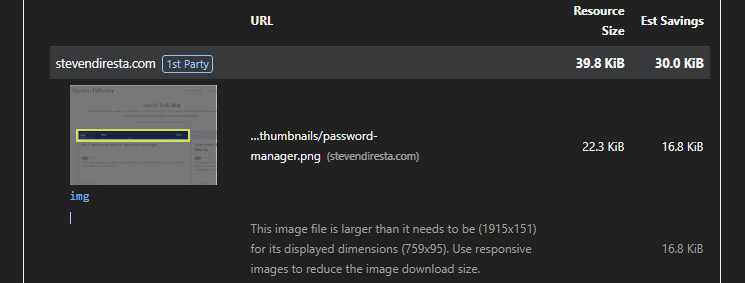
The image below shows Lighthouse suggesting that I improve an image on my website's home page. It compares its size relative to how much I can save, points to the image's location, and explains that it's currently larger than it has to be. Pretty handy to have this all spelled out, especially for lesser experienced web devs.
Other heavyweight inclusions are libraries that hold scripts, style sheets, and fonts. They're incredibly convenient for rapid development, granting instant access to premade design elements and JavaScript functionality. While these are helpful, it's important to weigh whether or not the boost in efficiency is worth their overhead. For instance, I use Bootstrap in nearly all of my projects but I never use all of its available elements and assets.
There are tools online that can minify files containing scripts or styles, which essentially means that all of their formatting and empty space gets removed to reduce its overall size.
Accessiblility
This category helps you determine whether your elements are widely accessible, which can mean a few things. Here are some examples.
The contrast of your elements needs to be considered in the interest of strong readability. If text meant to be read by your users is not significantly contrasted against its background, it'll be listed by Lighthouse like this:
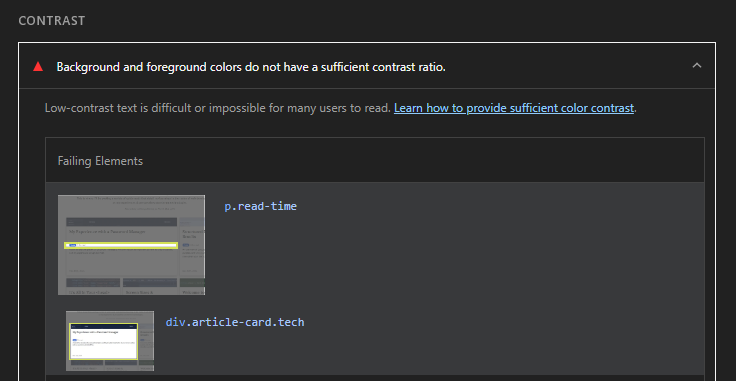
Thankfully, it's once again made very clear where the problem is. It even includes the element's applied CSS classes which helps to simplify the application of a fix to all affected elements that bear the same class. In this case, I had lightgray text on a white background, which Lighthouse thought wasn't quite good enough. I've since darkened the text and the warning vanished.
Another piece of the accessiblility pie is touch targets. When you're one a desktop or laptop, the mouse cursor is a very precise aiming tool. However, when using a touch screen on a mobile device, your finger can't quite offer the same measure of precision.
Lighthouse will let you know if your buttons and links don't have sufficient padding to serve as an effective touch target. You have to admit that it would be annoying trying to tap on a tiny link just to miss repeatedly because it's too small.
A much more significant point is alt text since it serves to provide context on a link's destination for those using a screen reader. It works similarly for images.
The two main reasons that it's important to have descriptive alt text:
- If your site includes images that fail to load, the alt text will provide context on what it was supposed to display.
- If a user is visually impaired and makes use of a screen reader, the alt text will be read aloud so that they can still understand what the content of a link/image is.
On the subject of links, it's wise to give them discernible text. A link shouldn't simply say "click here", since you can't tell where "here" will take you. Instead, you might consider using a relevant keyword; something like "visit my contact page to see my email". In this example, the underlined text actually describes where the link would take you.
Best Practices
This section provides a lot of indicators that point toward a 'healthy' page that provides a solid UX. A lot of them are self-explanatory, since most websites strive to have these conveniences.
At this point, it's rather common knowledge that the 'S' in HTTPS indicates that the site you're on is using an encrypted, secure connection. This is super important for both user trust and SEO, especially since trying to access sites without the secure protocol generates a warning for users.
Then there are some smaller items, like allowing users to paste into any inputs on the page, and not requesting to have your location or allow notifications.
Additionally, there are a lot of points regarding page security, such as ensuring you aren't vulnerable to certain script attacks via a strong Content Security Policy, but those start to get more technical.
The general idea is that if something on a website has annoying behavior, then it isn't adhering to the best practices.
SEO (Search Engine Optimization)
SEO is a great place for people to look if they want to bolster their position in a search engine's results (and many do). While it won't include a 1-to-1 scoring estimate or a guarantee of strong ranking, it helps steer your efforts towards earning you the best chances.
Links
Much like in the accessibility section, links should have descriptive, discernible text to ensure that crawling is easy for search engines. A solid optimization is to include keywords that are relevant to your page's subject matter since it's important to reinforce your overall aim or message.
Lighthouse is able to tell you whether or not you have any links that aren't crawlable, which would lead to them not being indexed (and therefore absent from search results). This is usually due to an href attribute being set improperly.
Titles & Meta descriptions
If your page doesn't have its title or meta descriptions set, Lighthouse will let you know. These elements provide meta data to Google that describe what your page is about. It helps users by displaying their contents on the search engine results page (SERP) — the title is the blue link, and the meta description is what appears right beneath it.
For a little more context on ideal titles, meta descriptions, and other elements within a page's head tag, you can read my article regarding the head element.
So much more
There's a whole world around webpage design that weighs in on the SEO component. The heading tag hierarchy, a robots.txt file, backlinks, page authority, content strategies, keyword planning, structured data schema — the list is long and complex. Lighthouse can't even automatically check for each and every one of these. Instead, it lists most of them as manual checks for the developer to learn up on and implement themselves.
Final Notes
Lighthouse is a very convenient tool to have built-in to Chrome's development section. It provides quick and simple-to-read insights to help guide development and reveal the potential for improving performance or saving load time.
Scoring a perfect 100 on all categories is a little optimistic. To have complex layouts, embedded files, fancy animations, and extended functionality means you might have to compromise in a few places. Finding a balance that works with your project and doesn't interfere with UX is part of the game.
At the end of the day, it's important to remember that these are guidelines — not guarantees. A perfect score in SEO doesn't mean you'll be at the top of page 1. Nor does a 100 in performance mean your page will load instantaneously. Much like a regular lighthouse, it helps you determine the direction to head in, but won't drive the boat for you.
Additional Resources
For more information on Lighthouse, here is a link to Chrome's developer documentation.
Alternatively, you can use PageSpeed Insights to get an incredibly similar report by simply pasting a URL. It works in the same way as Lighthouse, but doesn't allow you to run the scan on offline pages. That's why I use Lighthouse; it helps guide my development (hence the name).
March 31st, 2026